
Online & Mobile
More Local bank capabilites at home than ever before!
Get More from Your Money with Insights
Insights is a budgeting and financial management tool available through Local Bank’s online and mobile banking. It can help you better understand your spending, organize transactions, create budgets, track financial goals, and view your accounts in one place.
Choose the tutorial that matches how you access online banking:
Insights on the Mobile App
Insights on Desktop
See how to use Insights through online banking on your desktop computer, including account tracking, budgeting tools, transaction categories, and financial trends.
Mobile Check Deposit
Deposit checks anywhere, anytime with the Local Bank app.
Mobile Check Deposit makes it easy to deposit eligible checks from your phone without visiting a branch.
Before getting started, make sure you’re registered for Mobile Check Deposit in the Local Bank app.
 How to Deposit a Check
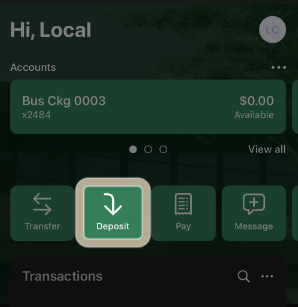
1. Tap Deposit
From the Local Bank app home screen, tap Deposit.
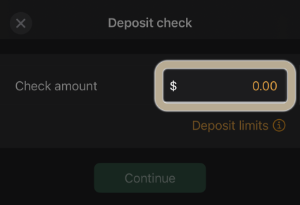 2. Enter the Check Amount
Enter the amount shown on your check, then tap Continue.
Make sure the amount you enter matches the check exactly.
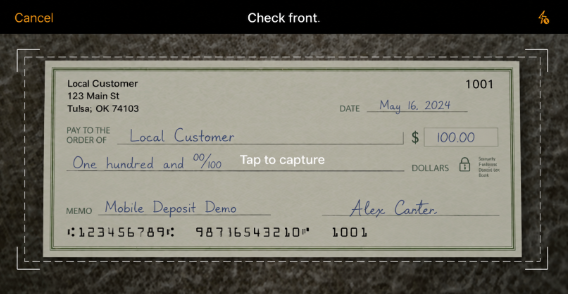
3. Take a Photo of the Front
Place the check on a flat, well-lit surface.
Position the entire check inside the on-screen frame, then tap to capture the front of the check.
For the best results:
-
Make sure all four corners are visible.
-
Avoid shadows or glare.
-
Keep the check flat and in focus.
4. Endorse and Photograph the Back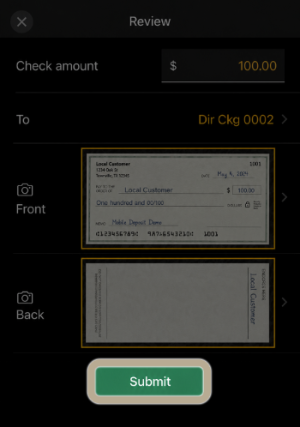
Turn the check over and endorse it in the designated area.
Sign your name and write:
For Mobile Deposit Only at Local Bank
Then take a clear photo of the back of the check.
Image: Back of check showing the properly oriented endorsement and signature.
5. Review and Submit
Review your deposit before submitting.
Confirm that:
-
The check amount is correct.
-
The correct deposit account is selected.
-
The front of the check is clear and readable.
-
The back of the check and endorsement are clear and readable.
When everything looks correct, tap Submit.
Image: Review screen showing the front and back check images.
After You Submit
Keep the original check until you’ve confirmed that the deposit has been credited to your account.
Once the required retention period has passed, mark the check VOID and securely destroy it.
Mobile Deposit Guidelines
-
Mobile Check Deposit is available for checks over $50.
-
You may deposit up to 10 checks per day.
-
Deposits made after 6:00 PM, on weekends, or on holidays will be posted the next business day.
-
Mobile deposit works on iPhone 8 or newer and Samsung Galaxy S8 or newer.
Need Help?
If you have questions about Mobile Check Deposit or need help getting registered, contact your Local Bank team.
7 Steps to Set Up Online Banking
1. Contact Customer Service
Call or visit a customer service representative at any Bank of Cherokee County branch. Ask the representative to activate online banking for your account and provide your initial login ID.
Have a valid photo ID and your account information available for verification. Never send your Social Security number, password or temporary PIN through email or text.
2. Visit the Bank’s Website
Using a trusted web browser, go directly to the Bank of Cherokee County website.
For your security, avoid accessing online banking through links in unexpected emails or text messages.
3. Select “Login”
Click the Login button on the bank’s home page. Enter the login ID provided by the customer service representative.
Double-check the website address before entering any account information.
4. Enter Your Temporary PIN
When prompted, enter your temporary PIN. Unless the bank provides different instructions, your temporary PIN will be the last four digits of your Social Security number.
Only enter this information on the bank’s secure website. Do not share your PIN with anyone.
5. Create Your Personal Login
Follow the prompts to update your personal information and create your permanent login credentials.
Choose a strong, unique password that you do not use for other accounts. You may also be asked to select security questions or verify your contact information.
6. Enable Mobile Access
After signing in, open the Mobile Settings section and enable web or mobile access for your account.
Complete any additional verification steps shown on the screen.
7. Download the Mobile App
Download the Local Bank app from the Apple App Store or Google Play Store. Confirm that the app is published by the bank before installing it.
Open the app and sign in using the permanent login credentials you created.
Need help? Contact a Bank of Cherokee County customer service representative or visit your nearest branch. Bank employees should never ask you to disclose your complete password.